How do I scan a long document (XL documents)?
Last updated: October 26, 2026
In the left sidebar, choose New Scan. Paste the document or upload a file. Select Basic AI Scan or Advanced AI Scan, then click Scan. A long document uses one of those scans. You do not select a separate scan for it. On the dashboard home page, this page-by-page result is the item labeled XL Documents.
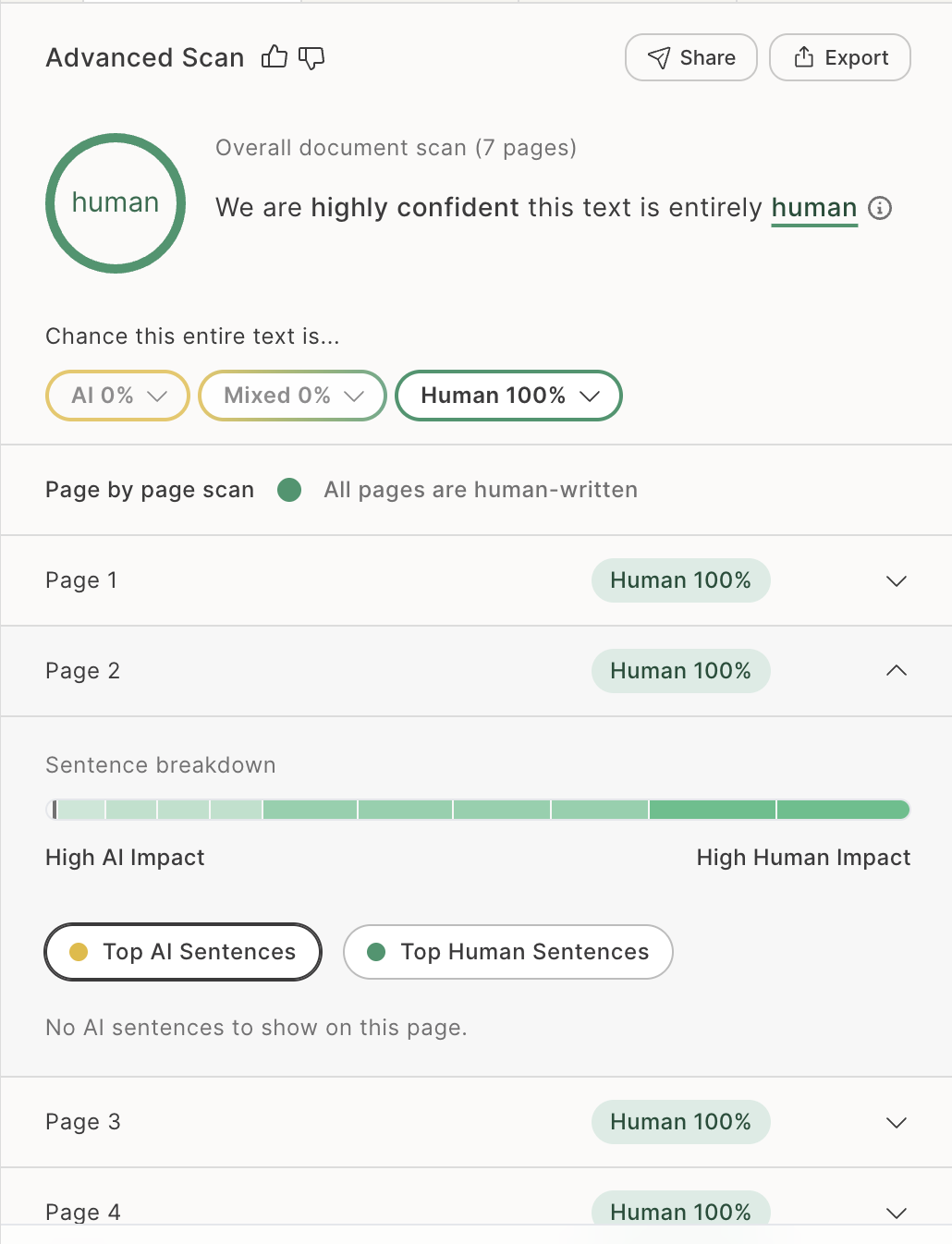
On the Premium and Professional plans, a Basic AI Scan or an Advanced AI Scan shows text longer than 20,000 characters page by page, up to 50 pages. Select a page to read that page. The result at the top covers the whole document.
A PDF with more than one page is listed page by page after a Basic AI Scan or an Advanced AI Scan.
Note
On the Free and Essential plans, a document longer than 20,000 characters is not split into pages. That is where page-by-page scanning starts. Choose Get started with Professional if the document is longer than that.
A page needs enough text for a score. When it does not, the row says Too short to scan.
The scan can also stop before the document ends. The last page included says Partially scanned. Pages after it say Not scanned. Choose Upgrade on one of those pages to scan more of the document.