How can I create a team subscription?
Last updated: October 19, 2026
A team subscription puts everyone on one shared plan. Team members draw from a single monthly word allowance, and the Usage tab shows words scanned and activity for each member.
1. Open the Teams page
In the left sidebar, click More, then select Create a Team.
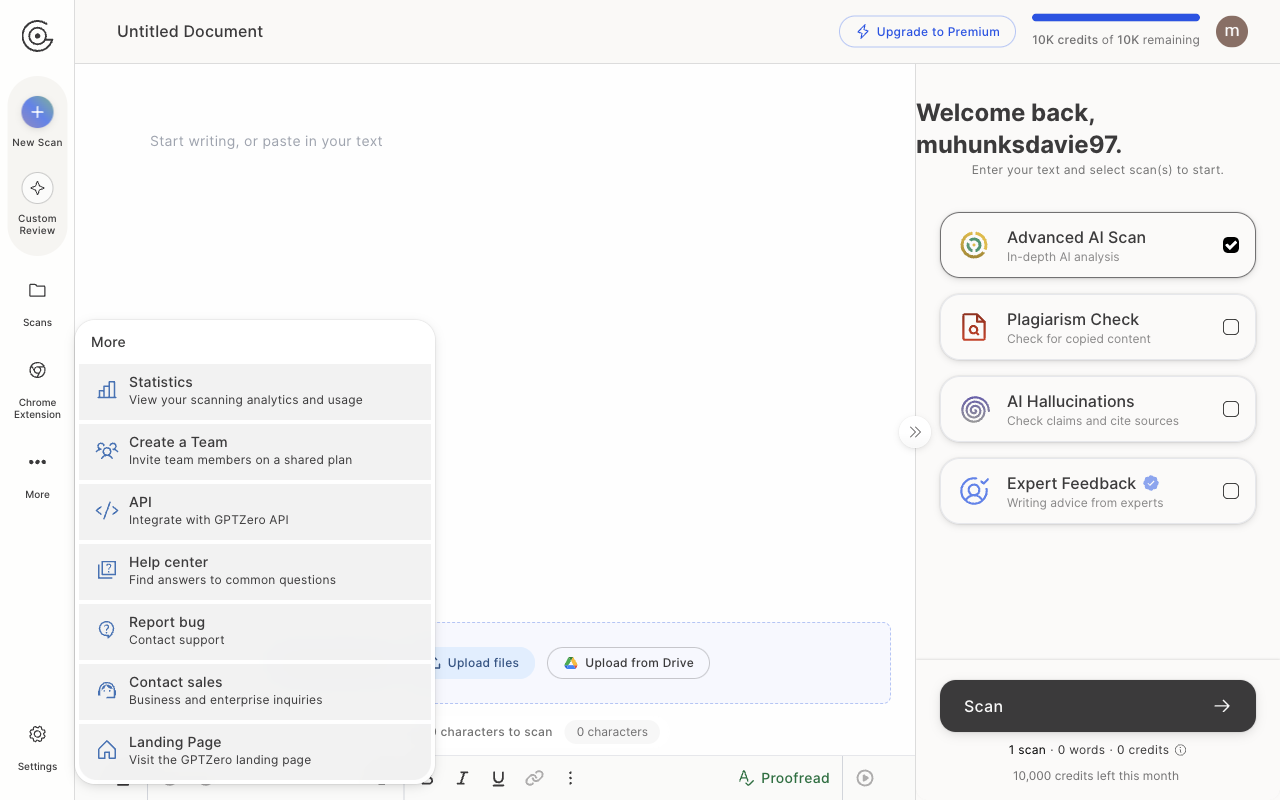
Already on a team? Click Teams in the left sidebar, then click New Team in the top-right corner. This opens the same plan window described in step 3.
2. Start creating your team
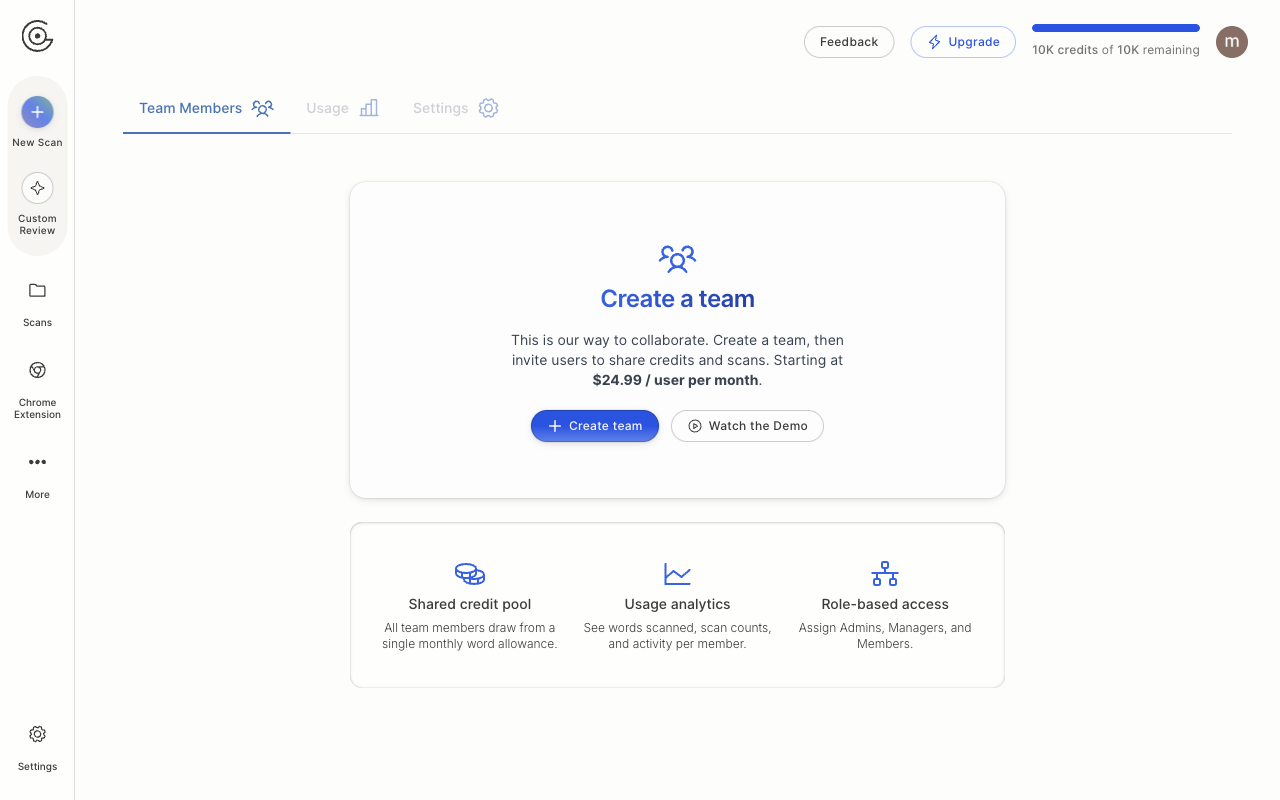
On the Teams page, click Create team.
3. Choose your plan and team size
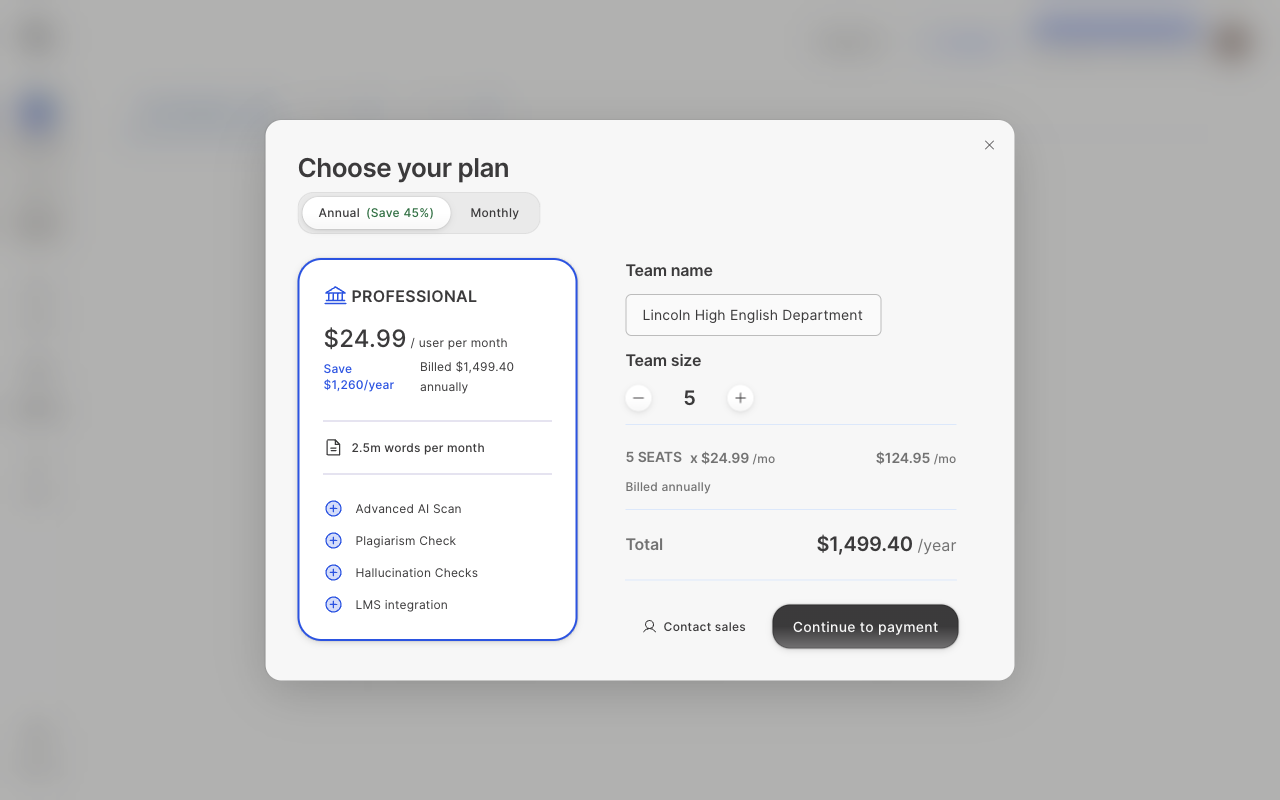
In the Choose your plan window:
Pick Annual or Monthly billing at the top.
Enter a Team name.
Use the + and − buttons under Team size to set the number of seats. Your own account uses one seat.
The price summary updates as you go. When you're ready, click Continue to payment. For a larger team, click Contact sales instead.
4. Complete payment
You'll be taken to a secure Stripe checkout page. Enter your payment details to start the subscription, and you'll be returned to GPTZero.
If you leave checkout before paying, your team is still created. To finish later, open Teams and click Upgrade on the banner at the top of the page.
5. Invite your team members
On the Team Members tab, under Invite your team members:
Enter a member's email address and choose their role.
Click Invite another member to add more people, or click Upload a CSV to invite up to 500 people at once.
Click Send invites.
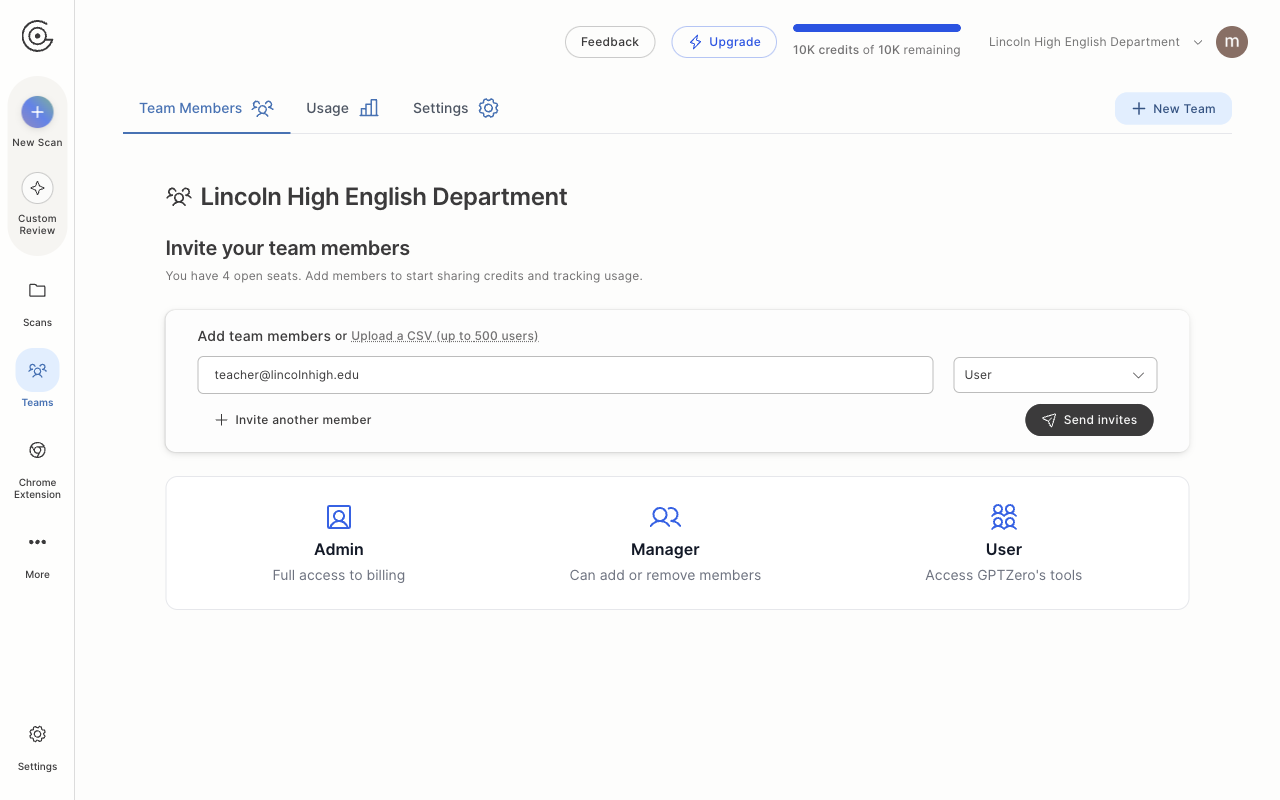
Each role has different permissions:
Admin: full access to billing.
Manager: can add or remove members.
User: can use GPTZero's tools.
To rename your team or add a description, open the Settings tab on the Teams page.