How do I create and grade an assignment?
Last updated: October 25, 2026
On the Assignments page, you design a task, share it with students, and review what they turn in. You set how AI may be used, then grade each submission against your rubric. An AI score and a writing replay sit next to the grade, so you can see the finished work and, when a recording exists, how it was written. Students do not see an Assignments item in the sidebar. They open a link from their teacher.
For the wider set of educator tools, see How Do I Use GPTZero In My Classroom?
Educators with access see an Assignments item in the left sidebar, under Scans. That includes accounts with the Educator or Teacher role. If you do not see that item, the page is not available on your account.
How to start an assignment
Open Assignments. Up to three ways to start can appear:
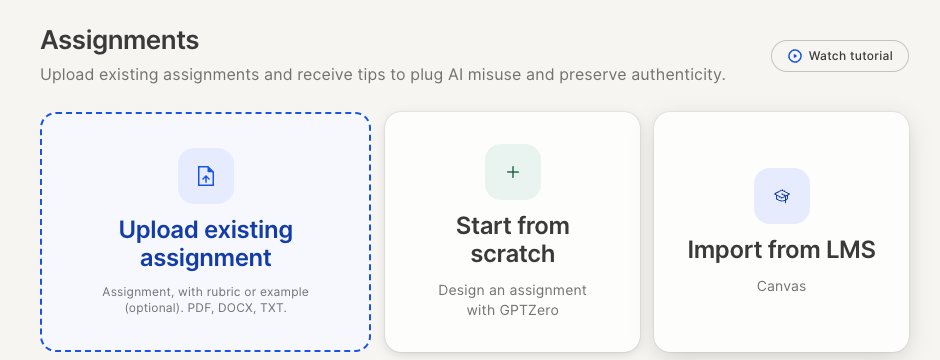
Upload existing assignment. Click the card, or drag a PDF, DOCX, or TXT file onto it. You can include a rubric or an example. GPTZero opens the assignment so you can adapt the guidelines and the grading criteria.
Start from scratch. Choose an assignment type, then set the guidelines and the grading criteria.
Import from LMS. This card is for Canvas. It appears only when Canvas import is available and Canvas is not already connected. Connecting uses the GPTZero Chrome extension and your Canvas account, and you can bring in courses, assignments, and student rosters. A Connect banner may appear before the card. After you connect, pick a course, then an assignment in that course.
Choose a type
Under Research-backed Assignments, pick the type that matches the work you want. The group next to each type is how students may use AI.
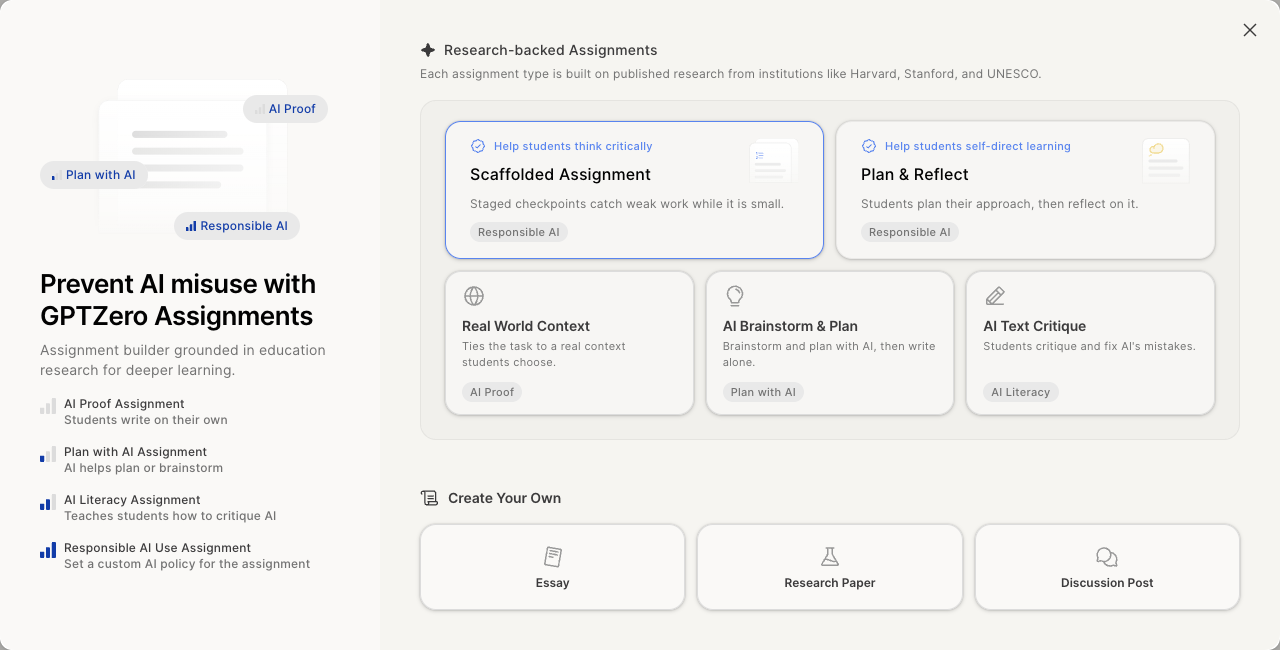
Scaffolded Assignment. Responsible AI Use. Use this when you want the writing broken into stages, such as an outline, sources, a draft, and a final submission, so weak arguments and missing evidence show up while the work is still small. You set the AI policy.
Plan & Reflect. Responsible AI Use. Use this when students should plan before they write, then look back at the choices they made. You set the AI policy.
Real World Context. AI Proof. Use this when students should connect a course idea to a real situation they choose, and support it with details they can check. They write on their own.
AI Brainstorm & Plan. Plan with AI. Use this when students may use AI to explore a plan, then write without AI. They explain what they kept, changed, or rejected.
AI Text Critique. AI Literacy. Use this when students should find, explain, and correct mistakes in AI-written text, then revise it.
Under Create Your Own, you can start an Essay, a Research Paper, or a Discussion Post.
Set the AI policy and the rubric
The AI policy tells students how they may use AI. They see it on the assignment.
Choose No AI Use when the work should be the student's own. Choose Full AI Use when AI can be part of the work from start to finish. Choose Custom AI Use when the rule should differ from one part of the assignment to another.
With a custom policy, you set the rule for each part. Allow with disclosure means the student may use AI and must say so. Don’t allow means AI is off for that part.
Scoring suggestions are separate from the policy. Under Grade with AI, turn on Generate score and feedback using rubric if you want a suggested score and comments based on your rubric. You can change both before students see them.
With suggestions turned on, choose a Feedback tone. The options are Encouraging, Direct, Critical, Professional, Simple, and Custom.
Use Student Preview to see the assignment as a student will. Export as PDF saves a copy of the assignment.
How students submit
In the assignment builder, click Publish. Turn link sharing on, then send students that link. Anyone with the link can open it while sharing is on. While sharing is off, students cannot access the link yet. You can open the same link later from the review page with Share Link.
A student opens the link and signs in, or creates an account. They add each part the assignment asks for. A part can be an uploaded file, pasted text, a pasted link, or a Google Drive file, depending on the assignment. Then they click Submit Assignment.
After grades are published, the student opens Your grades, then View full feedback.
How to review and grade
If the assignment is still a draft, open it with Edit. Once it is published, open it with Grade to review what students turned in. When every submission has been reviewed, that button says View.
Grade opens the class list. You can see who submitted, the grade you gave, and an AI score. The Typing column tells you whether a writing replay was recorded. Not available means no recording is available. Get extension means you need the GPTZero Chrome extension before you can watch one.
From the class list, Grade opens the next submission that still needs a grade. Read the work in Grader, check it with AI Scan, or look for Plagiarism.
When a recording exists, Writing Replay shows how the document was written. It can help you understand the submission.
Set the rubric with Set up grading criteria. After a rubric exists, that button becomes Edit grading criteria.
AI Grading Suggestions can draft a score and comments from the rubric. Use its Grade button for a first pass, and Regrade if you want another. Change anything you disagree with, then click Done.
You can share grades after at least one submission is graded, and the deadline has passed. Publish Grades then lets you email students, or download a CSV to copy into your gradebook. Each email has a link to that student's own feedback. They sign in to open it.