What is Plagiarism Check?
Last updated: October 22, 2026
Plagiarism Check looks for copied content. It compares your document with text on the web and in academic databases, then shows the passages that match and the pages they came from.
How to select it
Enter your text. Before you scan, select Plagiarism Check. The tile says Check for copied content. You can select it on its own or together with other scans, then click Scan.
On a free account, selecting it asks you to upgrade before the check runs.
What the Plagiarism result shows
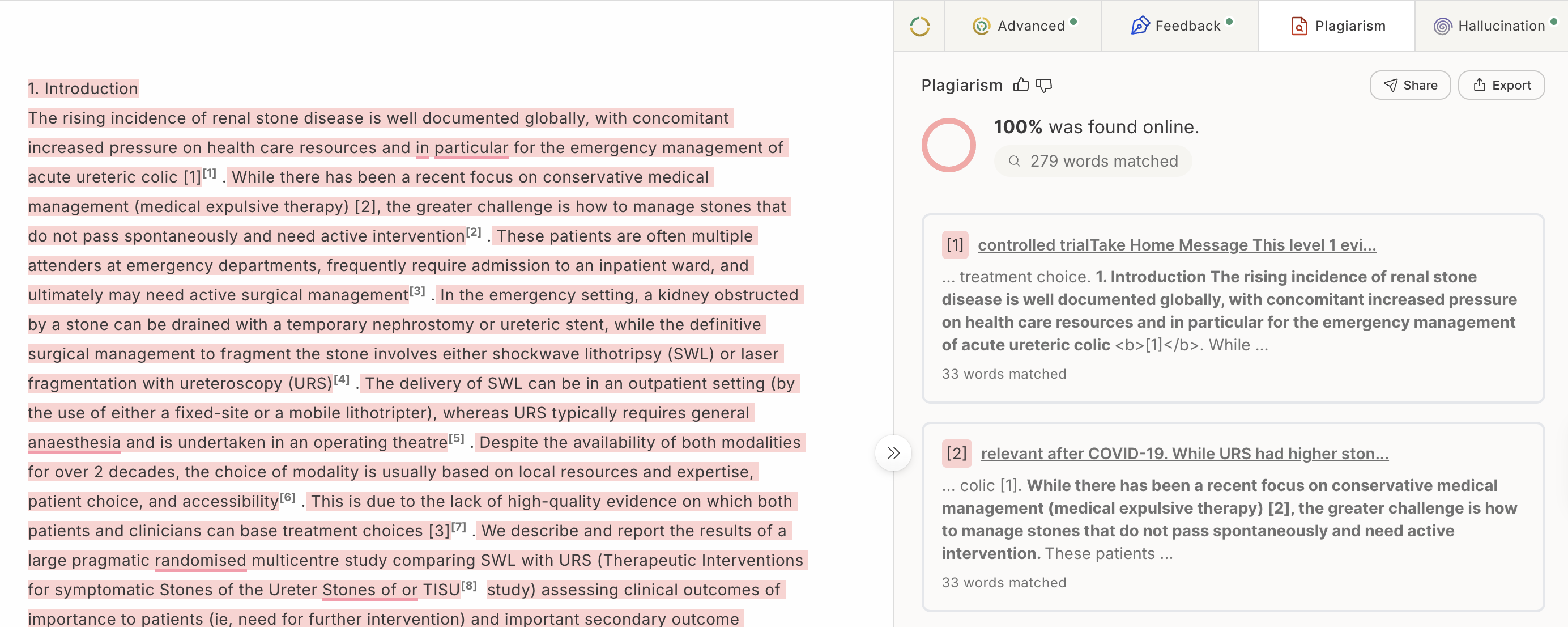
Open Plagiarism in the results. The summary is a percentage followed by “was found online,” plus a count of how many words matched.
Matching passages in your document are highlighted and numbered, starting at [1]. The same numbers appear on the source cards. Each card shows:
The source title, which links to the page.
A short excerpt. Words found in that source are in bold.
The publisher, when one is listed.
How many words matched that source.
Copy Citation, which opens citation styles you can copy.
The list starts with three sources. If there are more, click Show more. Click Hide more to shorten the list. Click a source card to jump to that match in your document.
Below the sources, the result either states the number of claims missing citations, or it reads “No claims missing citations detected.”
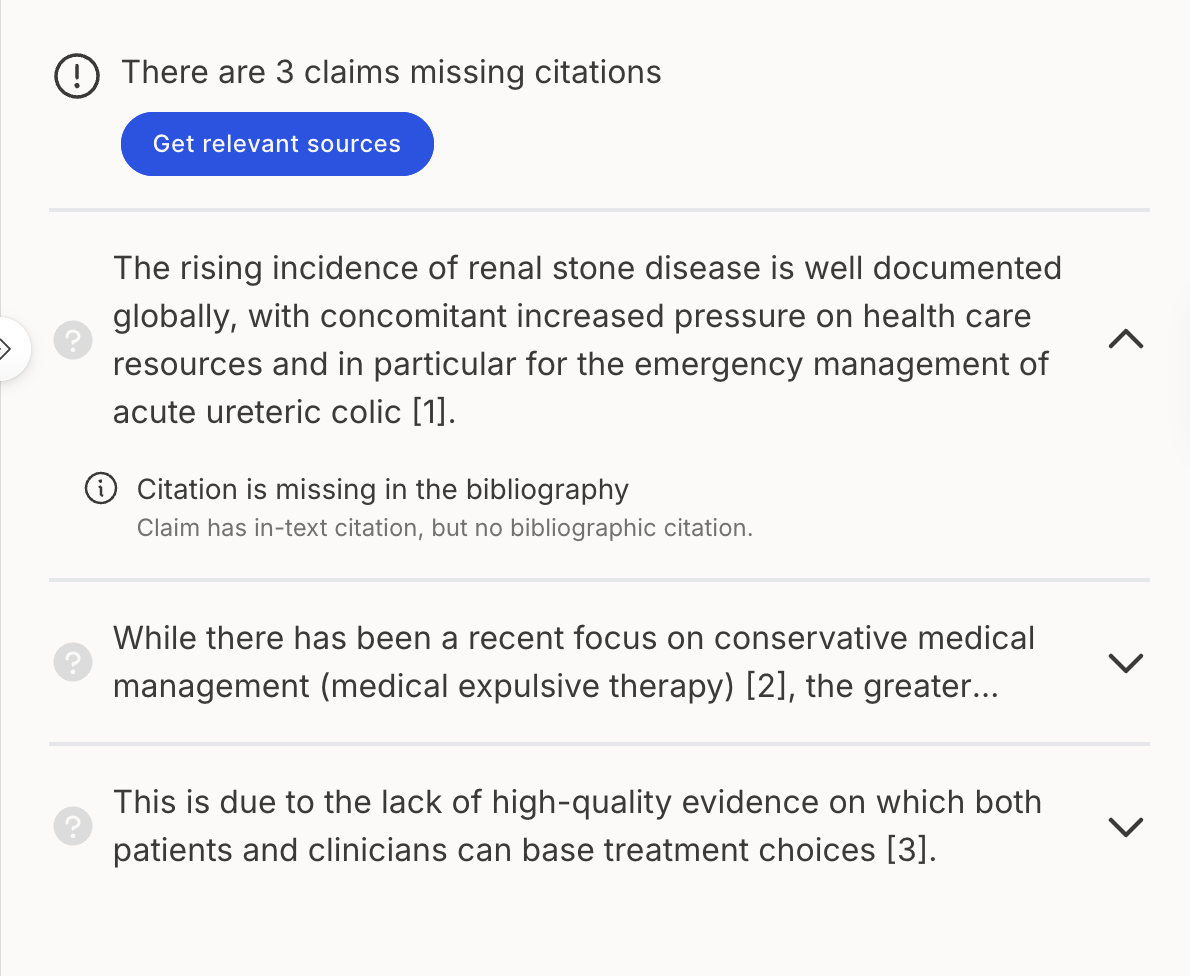
Each listed claim uses one of these notes:
Citation is missing in the bibliography, when the claim is cited in the text but not in the bibliography.
Claim requires a citation, when the claim is not cited.
When claims are missing citations, Get relevant sources opens Hallucination to look for sources for those claims.